
Application Detail
The pages inside an application: overview, devices, live data, alarms, integrations, and MQTT
When you open an application, the sidebar switches to application mode, with pages for everything inside that application.
| Page | Use it to |
|---|---|
| Overview | See activity at a glance |
| End Devices | Register and manage devices |
| Live Data | Watch every message as it arrives |
| Alarms | Create rules and handle alarms |
| Integrations | Send this application's events to other systems |
| MQTT | Get connection details and sample code |
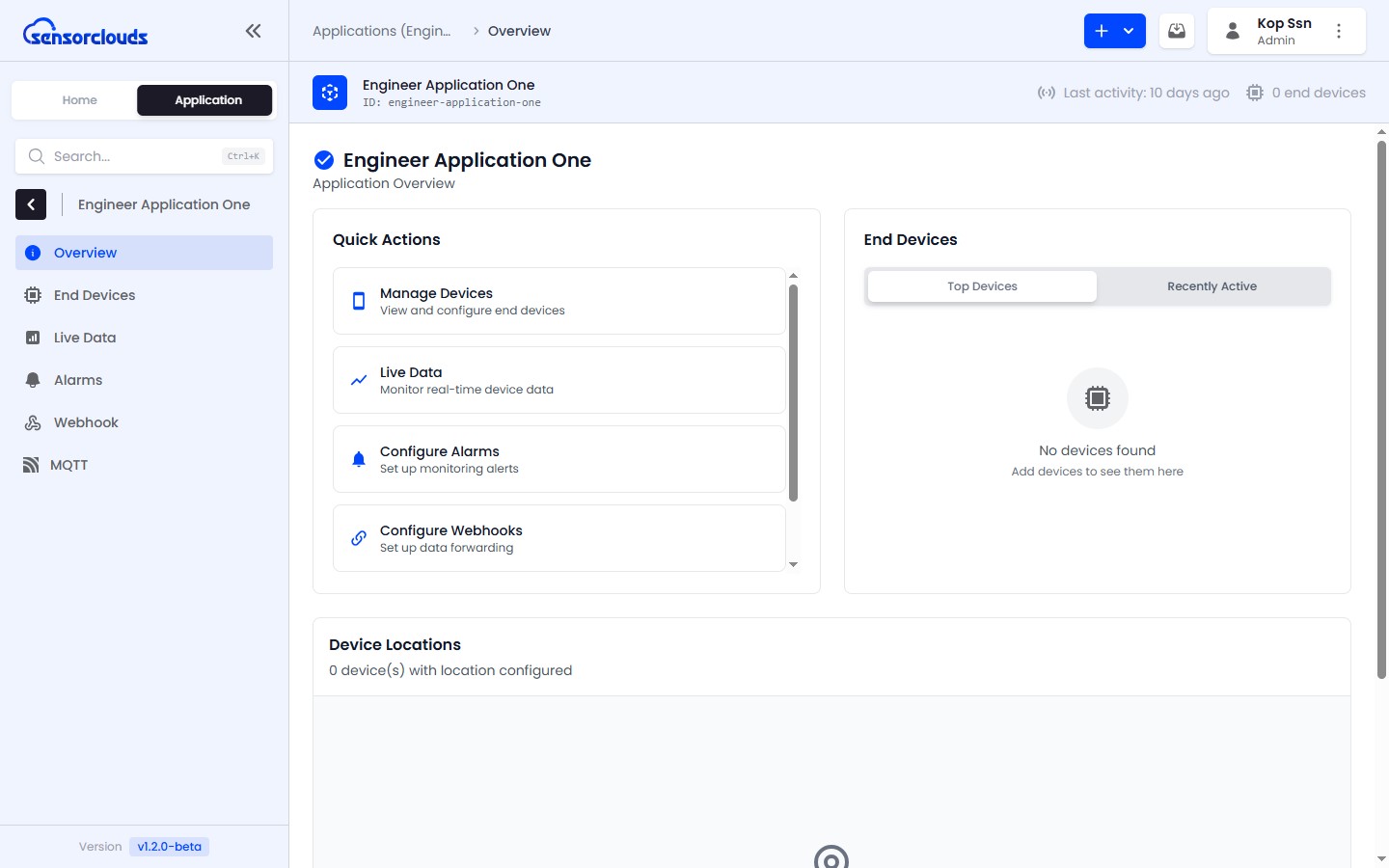
Overview
- Quick links to the other pages: Live Data, MQTT Connection, Manage Devices, and shortcuts to set up alarms and data forwarding
- Top Devices / Recently Active: switch between the devices you've starred in the End Devices list and the five devices that reported most recently
- Location map of every device with coordinates
Star the devices you check most often (the star at the start of each row in End Devices). They appear under Top Devices on the overview.
End Devices
The full device list with online/offline indicators. Click Add Device to register one, or a row to open the device detail page.
Live Data
A real-time event log for all devices in the application: uplinks, downlinks, and errors, with search, filters, pause, and a detail panel. It's the quickest way to confirm a device is working. See Viewing Telemetry Data.
Alarms
This page is titled Alarm Configurations. It lists the alarm rules for this application, and it's where you add and edit them (only Admins can delete rules). See Creating Alarm Rules.
Alarms that fire appear on the workspace-wide Alarms page in the main sidebar, where you acknowledge and resolve them. See Managing Alarm Instances.
Integrations
Integrations scoped to this application, for example a Slack channel just for this site. See Connecting an Integration.
MQTT
A built-in connection guide with this application's topic pattern and sample code.
For tested settings, see Connecting Your Device. Use MQTTS on port 8883.