
Managing Applications
Create applications, assign Engineers, and delete applications you no longer need
Create an application for each site, building, or project before you register devices. This page covers creating, editing, sharing with Engineers, and deleting applications.
Before you begin
- You need the Admin or Engineer role. Only Admins can assign Engineers and delete applications.
- Choose the Application ID carefully. Devices use it in their MQTT topics, and it can't be changed after the application is created.
Creating an application
Open Applications from the sidebar.
Click Add Application (or Create Your First Application when the list is empty).
Fill in the form:
| Field | Required | Rules | What it's for |
|---|---|---|---|
| Application ID | Yes | 3–50 characters: lowercase letters, numbers, and hyphens. Unique in the workspace | The identifier devices use in their MQTT topics, for example warehouse-monitoring |
| Application Name | Yes | 3–100 characters. Unique in the workspace | The name your team sees, for example "Building A - HVAC" |
| Description | No | Up to 500 characters | What the application covers. Helps teammates pick the right one |
| Status | Yes | Active or Inactive | A label for your team. It doesn't stop devices from connecting or data from being stored |
Click Create Application.
The application appears in the list. Click it to open it and register your first device.
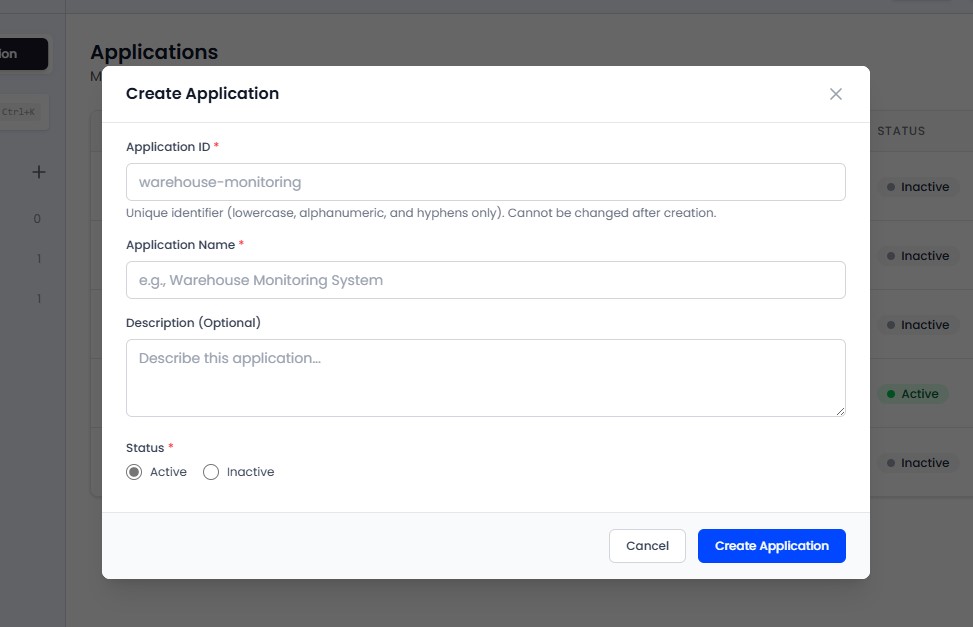
The Application ID is part of every device's MQTT topic and can't be edited
later. Choose something short and stable, such as site-north. Avoid names of people, dates, or
anything that may change.
Editing an application
Click the Edit icon on the application's row. You can change the name, description, and status, then click Update Application. The Application ID can't be changed.
The applications list
| Column | What it shows |
|---|---|
| Name / ID | The application name, with its Application ID underneath. Click the row to open the application |
| Devices | How many devices it contains |
| Created | When it was created |
| Created By | Who created it |
| Status | Active when at least one of its devices is online. Inactive when none are |
| Actions | Edit, Assign Engineers (Admins only), and Delete (Admins only) |
Admins see every application. Engineers see only the ones they created or are assigned to.
The Status column reflects device activity, not the Status label you chose in the form. A new application with no devices online shows Inactive.
Assigning Engineers to an application
Engineers work only in the applications they created or are assigned to. To give an Engineer access to an existing application (Admins only):
On the Applications page, click the Assign Engineers icon on the application's row.
Search for Engineers and tick the ones who should work on it. Select All and Clear help with long lists.
Click Save Assignments.
Assigned Engineers get full access to the application and everything in it: its devices, live data, alarm rules, and integrations. They also receive its notifications.
To take access away, open Assign Engineers again, untick the person, and click Save Assignments.
The list shows only members with the Engineer role. If someone is missing, invite them as an Engineer first.
Deleting an application
Only Admins can delete applications.
Click the Delete icon on the application's row.
Read the confirmation and click Delete.
Deleting an application is permanent and also deletes everything inside it: its devices (their stored data can no longer be viewed or exported), alarm rules and alarm history, integrations, scheduled reports, and the application's notifications. Uploaded firmware files are kept.
Before you delete:
- Export the data you need, with CSV Export or the API.
- Check your dashboards. Widgets that showed its devices stop showing data.
- Power down or reconfigure the devices. Their credentials stop working, so they can no longer connect.
Troubleshooting
| Message or symptom | Cause | Fix |
|---|---|---|
| An application with this ID already exists | Another application in this workspace uses that Application ID | Choose a different ID |
| An application with this name already exists | Application names must be unique in the workspace | Choose a different name |
| Application ID must contain only lowercase letters, numbers, and hyphens | The ID has spaces, capital letters, or other characters | Use a form such as building-a-hvac |
| An Engineer can't see an application | They didn't create it and aren't assigned to it | An Admin assigns them with Assign Engineers |
| An Engineer gets Failed to delete application | Only Admins can delete applications | Ask a workspace Admin |
| The application shows Inactive | None of its devices is online right now | See Device Status |