
Managing Alarm Instances
Acknowledge, resolve, and review alarms that have fired
Each time a rule fires on a device, it creates an alarm instance that you track from alert to resolution. Instances from every application you can access appear on one page: Alarms in the main sidebar.
Before you begin
- You need the Admin or Engineer role. Engineers see alarms from their own applications only.
- Crew don't use this page. They get alarm notifications for the devices on their dashboards.
Instance statuses
| Status | Meaning | Who sets it |
|---|---|---|
| ACTIVE | The condition was detected and nobody has responded | The platform |
| ACKNOWLEDGED | Someone is on it | A person |
| RESOLVED | Closed. The reading returned to normal, or someone resolved it | The platform or a person |
The Alarms page
Open Alarms from the main sidebar. "Monitor and acknowledge triggered alarms across all applications."
| Tab | Shows |
|---|---|
| Active | ACTIVE and ACKNOWLEDGED alarms that still need attention, with a count |
| History | RESOLVED alarms, for audit and trend review, with a count |
Each row shows the Application, Device, Alarm (rule name), Severity, Value that triggered it, Status, and Triggered At.
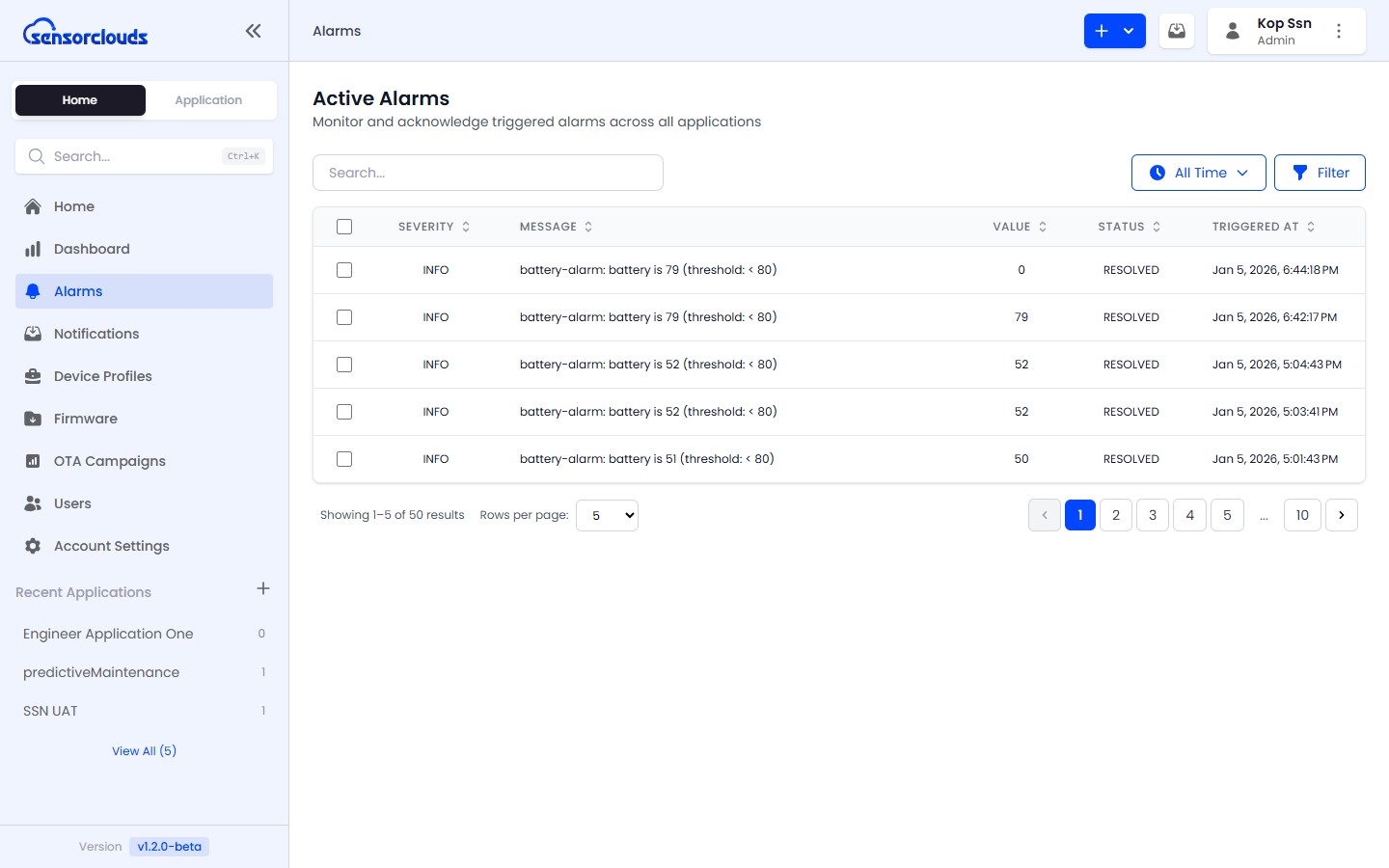
Filters
| Filter | Options |
|---|---|
| Application | All Applications, or one application |
| Time | All Time, Last 24 Hours, Last 7 Days, Last 30 Days |
| Severity | CRITICAL, WARNING, INFO (tick one or more) |
Alarm details
Click any row to open its details:
- Alarm Information: application, device, field, triggered value, and message
- Alarm Rule Configuration: the rule's operator, threshold, and description
- Timeline: when it was Triggered, Acknowledged (and by whom), and Resolved (and by whom)
Acknowledging an alarm
Acknowledge to tell your team "I've seen this and I'm handling it."
On the Active tab, click the alarm.
Click Acknowledge. The button appears only while the alarm is ACTIVE.
The timeline records who acknowledged it and when.
Resolving an alarm
Alarms resolve automatically when the reading returns to normal. To close one by hand, for example after a repair:
Click the alarm.
Click Resolve.
The timeline records who resolved it and when. If the condition comes back later, a new alarm opens (or, within the rule's cooldown, the trigger count goes up instead).
Working with many alarms
On the Active tab, tick several alarms. A bar shows how many are selected, with Acknowledge Selected, Resolve Selected, and Clear Selection. A confirmation appears before the bulk action runs.
Review History every week or two. Rules that fire constantly need a better threshold, a longer duration, or a longer cooldown.
Troubleshooting
| Message or symptom | Cause | Fix |
|---|---|---|
| There's no Acknowledge button | The alarm is already acknowledged | Resolve it when the work is done |
| Alarm instance is already resolved | Someone else, or the platform, resolved it first | Refresh the page |
| An Engineer can't see an alarm a colleague mentions | It belongs to an application they aren't assigned to | An Admin assigns them to the application |
| The same alarm reappears right after you resolve it | The reading is still past the threshold | Fix the cause, or adjust the rule |