
Creating Alarm Rules
Define the field, condition, timing, and actions for an alarm
Before you begin
- You need the Admin or Engineer role, and access to the application.
- Ideally, the device has already sent the field you want to watch, so you can pick it from a list. If not, you can type the field name.
- Decide the threshold, how long it must hold (duration), and how often you want to be told (cooldown).
- To send alerts outside Sensorclouds, connect an integration first.
Steps
Open the application and go to Alarms. The page is titled Alarm Configurations.
Click Add Alarm Configuration.
Fill in the Create Alarm form:
| Field | Required | Description | Example |
|---|---|---|---|
| Alarm Name | Yes | Say what and where | "Cold room above 8 °C" |
| Description | No | What to do when it fires | "Check door seal; call facilities" |
| Device | No | One device, or All Devices in the application | All Devices |
| Field | Yes | The telemetry field to watch. Pick a detected field, or type it if you see "No fields detected yet. Enter manually." | temperature |
| Operator | Yes | >, >=, <, <=, ==, != | > |
| Threshold | Yes | The number to compare against | 8 |
| Duration (seconds) | No | How long the bad value must hold before firing. 0 fires on the first reading | 120 |
| Cooldown (minutes) | No | Quiet period after an alarm resolves (0–1440, default 5) | 30 |
| Severity | Yes | INFO, WARNING, or CRITICAL | CRITICAL |
| Actions | Yes | Click + Add Action and choose In-App Notification or Webhook Integration | Both |
Click Create Alarm. The rule checks new readings from now on.
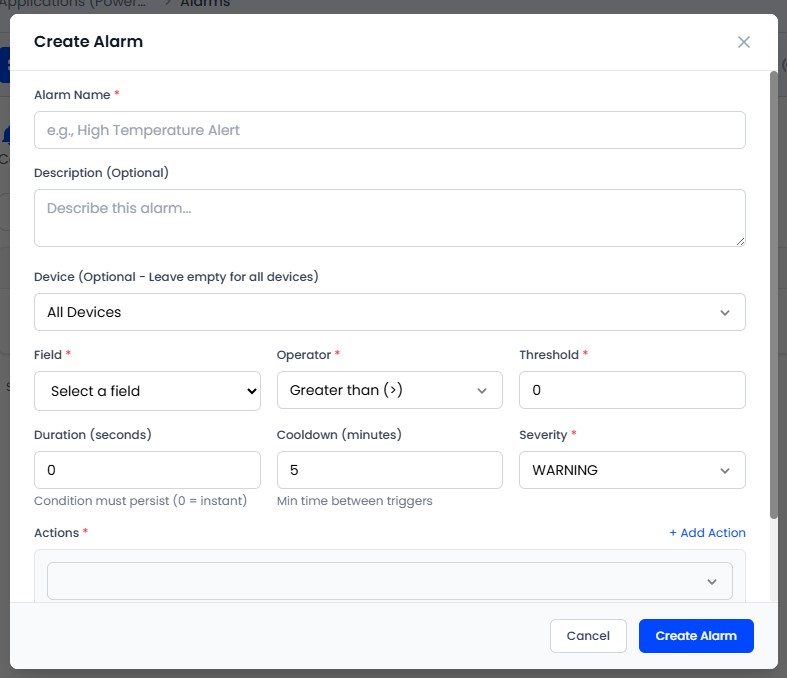
Your plan may limit how many alarm rules the workspace can have. The page header shows your usage, for example 12 / 20 alarms. At the limit, Add Alarm Configuration is disabled. The limit counts rules in all applications.
Scope: one device or all
| Device | The rule watches |
|---|---|
| All Devices | Every device in the application, each tracked separately |
| A device | That device only |
Use All Devices wherever you can. New devices are covered automatically, and each device still gets its own alarm instance.
Actions
| Action | Delivers |
|---|---|
| In-App Notification | A notification in Sensorclouds for everyone allowed to see the device |
| Webhook Integration | A message through one of your integrations (Slack, Telegram, or HTTP). See Triggering Integrations from Alarms |
If no integration exists yet, the action shows "No webhook integrations configured." Add one under Integrations first.
Engineers can choose only integrations within their applications.
Choosing duration and cooldown
| Situation | Duration | Cooldown |
|---|---|---|
| Safety-critical (gas, fire, freezer failure) | 0–30 s | 5 min |
| Process limits (temperature, pressure) | 60–300 s | 15–30 min |
| Slow trends (battery, tank level) | 0 s | 60–240 min |
| Noisy sensor | Longer, to filter spikes | 15+ min |
If a rule fires again within the cooldown after an alarm was resolved, Sensorclouds adds to that alarm's trigger count instead of opening a new one. A flapping value doesn't flood your list.
Testing a rule
Send a reading that breaks the threshold, for example with the quick test, then check that:
An ACTIVE alarm appears on the Alarms page (main sidebar), on the Active tab.
A notification appears on the bell.
Your integration (if any) receives a message.
Then send a normal reading. The alarm should resolve on its own.
Troubleshooting
| Message or symptom | Cause | Fix |
|---|---|---|
| Add Alarm Configuration is disabled | Your plan's alarm limit is reached ("Alarm limit reached for your plan") | Ask an Admin to delete rules you no longer need, or ask your administrator about your plan |
| Alarm limit reached. Your plan allows up to N alarms. | The same limit, reached while saving | As above |
| The rule never fires | The field name doesn't match the payload exactly, or the reading never breaks the threshold for the full duration | Compare the field with Decoded payload in Live Data. Try a duration of 0 while testing |
| It fires on every brief spike | The duration is too short | Increase Duration, for example to 30–60 seconds |
| You get alerts again and again | The value keeps crossing the threshold | Raise the Cooldown, or move the threshold away from normal values |
| The alarm doesn't resolve | The reading hasn't returned to normal, or the device stopped sending | Check the device's Live Data. Resolve it by hand if needed |
| WEBHOOK actions require a webhookId | A Webhook Integration action has no integration selected | Pick an integration, or remove the action |
| No Slack, Telegram, or HTTP message arrives | The integration is failing | Check its status under Integrations. See Connecting an Integration |