
Registering Devices
How to add new devices to the Sensorclouds platform
You register devices within an application. Each device is tied to a device profile that determines its MQTT behavior and payload decoding.
Prerequisites
Before registering a device, you need:
- An Application to contain the device
- A Device Profile to define its configuration
Creating a Device
Navigate to the Application
Go to Applications in the sidebar, then click on your target application. Switch to the Devices tab.
Add a New Device
Click Add Device and fill in the details:
- Name (required): A descriptive name for the device
- Description: Optional details about the device
- Device Profile: Select a profile template from the dropdown
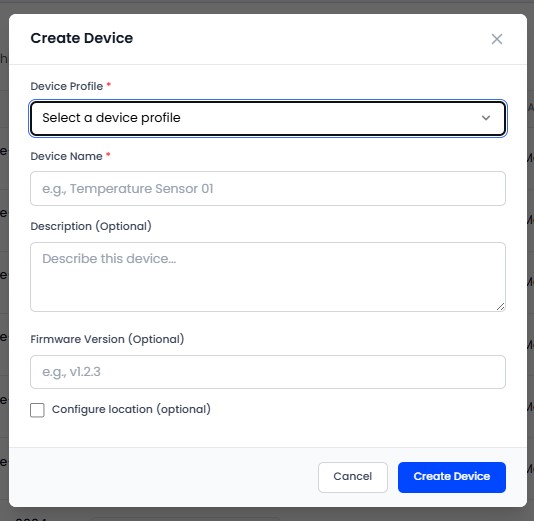
Save the Device
Click Save. The platform creates the device with a unique Device Token (used as the MQTT username).
The MQTT password is not generated automatically. After creating the device, navigate to the device's Settings tab and click Generate Password in the MQTT Credentials section to create your MQTT password. The password is shown only once - copy it immediately.
See Device Credentials for full details on managing MQTT credentials.
Device List Features
The device list provides:
- Filter by application or device profile
- Sort by name, status, or last seen
- Pagination for large device fleets
- Quick status indicators - green for online, red for offline
Deleting a Device
Navigate to the device's Settings tab and scroll to the Danger Zone. Deleting a device permanently removes all associated telemetry data and is irreversible.