
MQTT Settings
QoS, keep-alive, and clean session: what they do and which values to pick
A profile's MQTT Configuration tab records how devices of this type connect. Sensorclouds uses these values in two places: it sends commands at the profile's QoS, and it uses the Keep Alive to decide when a device is offline. Your device's own MQTT client must be set to match, because the profile doesn't change settings on the device.
To change the settings, open the profile, go to MQTT Configuration, click Edit, change the values, and click Save Changes.
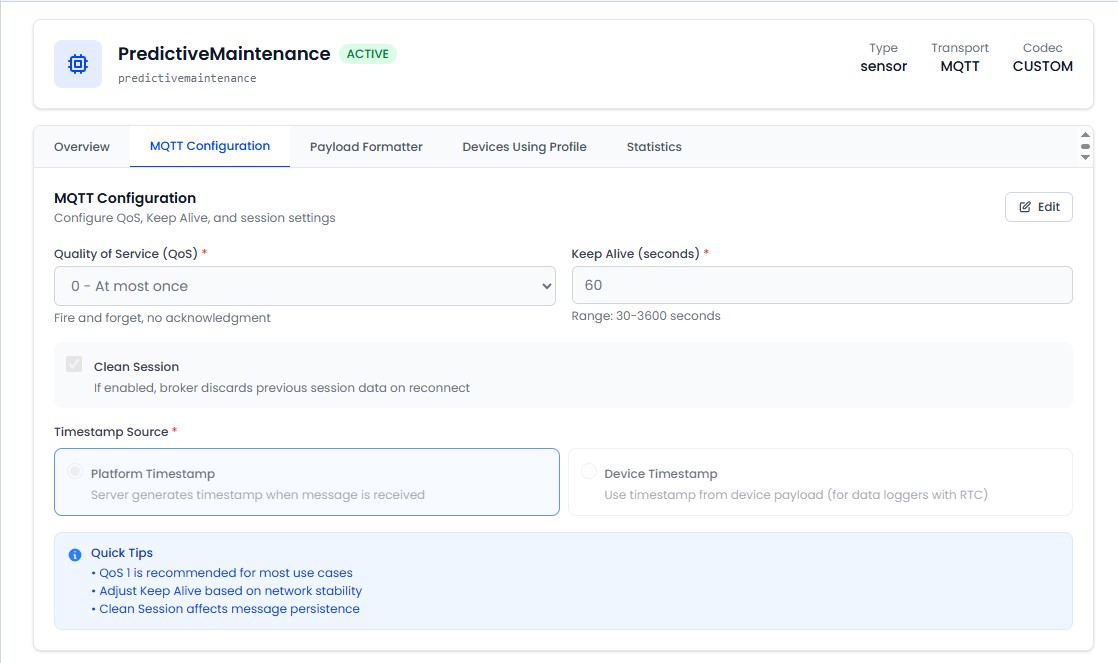
| Setting | Allowed values | Default |
|---|---|---|
| Quality of Service (QoS) | 0, 1, or 2 | 0 |
| Keep Alive (seconds) | 30–3600 | 60 |
| Clean Session | On or off | On |
| Timestamp Source | Platform Timestamp or Device Timestamp | Platform Timestamp |
QoS level
Quality of Service controls the delivery guarantee for each message.
| QoS | Name | Behavior | Best for |
|---|---|---|---|
| 0 | At most once | Sent once, with no confirmation | Frequent readings where an occasional gap is fine |
| 1 | At least once | Confirmed, and may arrive twice | Most devices (recommended) |
| 2 | Exactly once | Confirmed exactly once, with more overhead | Rarely needed for telemetry |
The default is 0. Change it to 1 for most devices, and use QoS 1 in your device code when it publishes telemetry, status, and command acknowledgments. Commands from the platform are sent at the profile's QoS, so QoS 1 also makes command delivery more reliable.
Keep-alive
The keep-alive is how often, in seconds, the device's MQTT client pings the broker when it has nothing else to send.
It also controls offline detection: a device that sends nothing for 1.5 × keep-alive is marked OFFLINE. With the default of 60 seconds, that's 90 seconds. See Device Status.
| Value | Use for |
|---|---|
| 30 s (minimum) | Fastest offline detection, with more network traffic |
| 60 s (default) | Devices that report every few seconds, up to about once a minute |
| 120–3600 s | Devices that report rarely. Set it above the reporting interval, or they'll flicker offline between readings |
Set the same keep-alive in your device's MQTT client, so the broker and the platform agree on when a device has gone quiet.
Clean session
| Setting | Behavior | Use when |
|---|---|---|
| On (default) | The broker forgets the device's subscriptions and queued messages when it disconnects | Most devices |
| Off | The broker remembers subscriptions and queues QoS 1/2 messages while the device is offline | The device must receive commands sent while it was offline |
The device chooses clean session when it connects. Set the same value in your device code for the behavior above to apply.
Timestamp source
Platform Timestamp stamps each reading with the time it arrived. Device Timestamp uses the
timestamp in the payload. See
Creating Device Profiles.
Troubleshooting
| Message or symptom | Cause | Fix |
|---|---|---|
| mqttKeepAlive must be at least 30 seconds | The value is below 30 | Use 30 or more |
| Devices flicker between ONLINE and OFFLINE | They report less often than 1.5 × keep-alive | Raise the keep-alive above the reporting interval, or publish more often |
| A device that lost power still shows ONLINE for a while | Offline detection waits 1.5 × keep-alive | Lower the keep-alive, and set a Last Will (see Connecting Your Device) |
| Commands sent while the device was offline never arrive | Clean session is on, or QoS is 0 | Turn clean session off in the device code, and use QoS 1 |
| MQTT configuration is only applicable for MQTT transport type | The profile's transport type isn't MQTT | Edit the profile and choose MQTT |