
Creating Device Profiles
Create a profile, choose its codec, and test it before using it on devices
Create one profile for each type of device: each combination of hardware and firmware that sends the same payload format. Setting one up takes three steps: create it, tell Sensorclouds how to decode its data, then check its MQTT settings.
Before you begin
- You need the Admin or Engineer role.
- Have a real payload from the device ready, copied from its serial log or a test run. You'll use it to test the decoder.
Step 1: Create the profile
Open Device Profiles from the sidebar and click Add Device Profile.
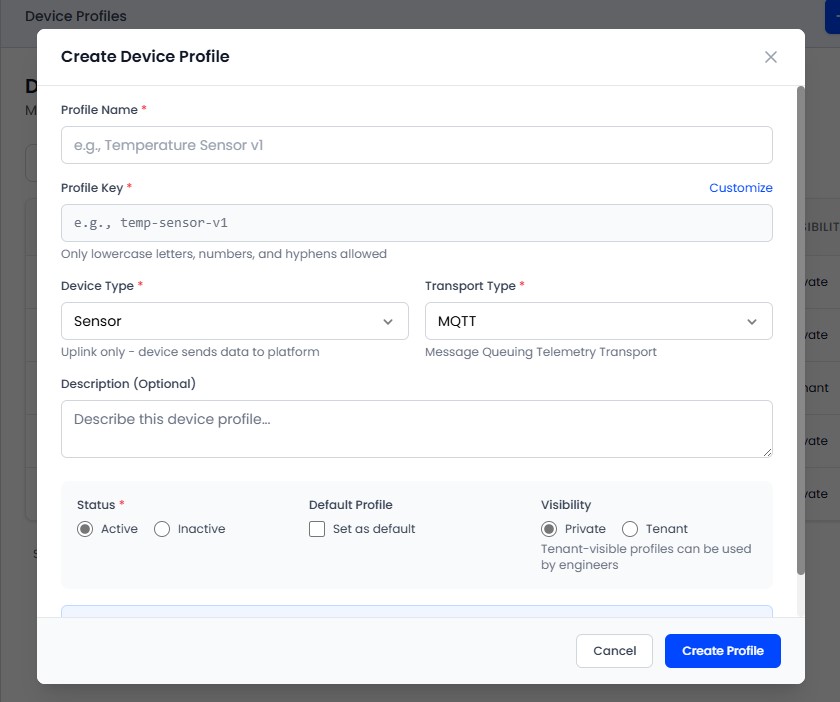
Fill in the form:
| Field | Required | What to enter |
|---|---|---|
| Profile Name | Yes | For example "ESP32 Climate Node v2" |
| Profile Key | Yes | Generated from the name. Click Customize to type your own: lowercase letters, numbers, and hyphens, unique in the workspace |
| Device Type | Yes | Sensor, Gateway, Controller, or Transceiver |
| Transport Type | Yes | MQTT. HTTP and LoRaWAN are listed, but devices can currently send data only over MQTT |
| Description | No | The hardware and firmware it's for |
| Status | Yes | Active or Inactive. A label for your team |
| Default Profile | No | Tick Set as default to pre-select this profile whenever someone adds a device |
| Visibility | No | Private while you test. Tenant to let Engineers use it |
Click Create Profile.
A new profile starts with codec NONE, which stores no data fields. Finish Step 2 before you register devices on it.
Step 2: Set up decoding
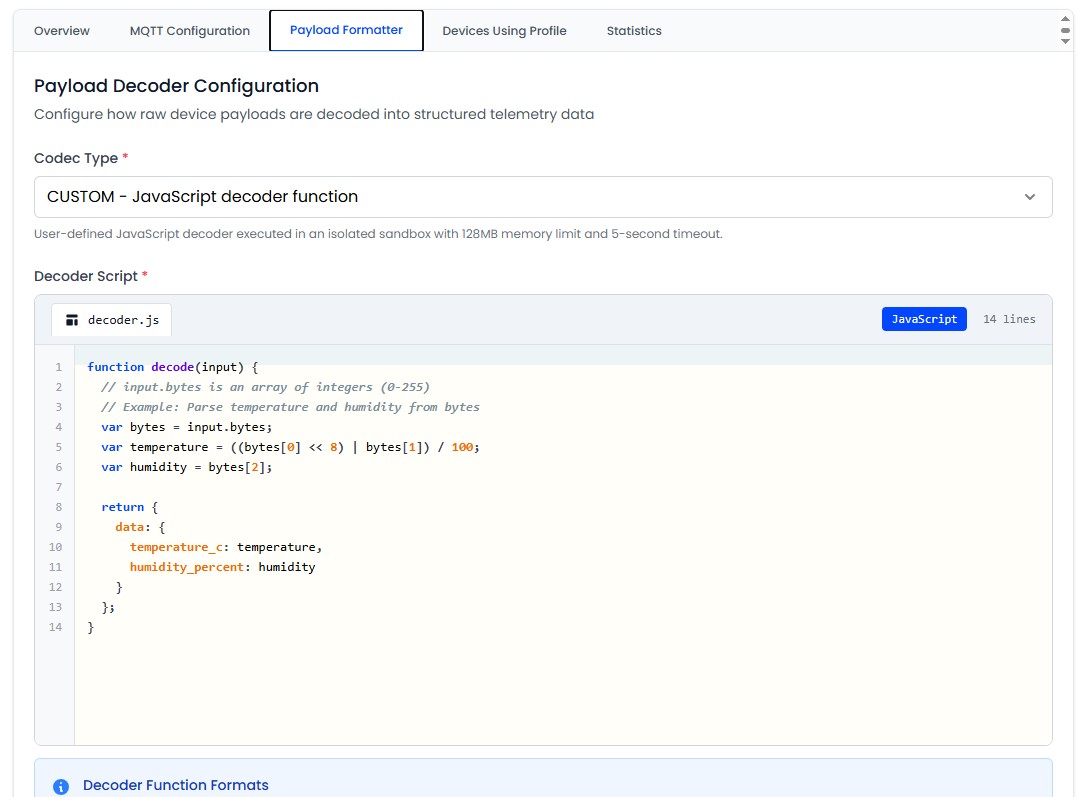
Click the profile to open it, then open the Payload Formatter tab.
Set Codec Type to CUSTOM - JavaScript decoder function.
Write or paste your decoder in Decoder Script. For JSON devices, use the three-line JSON decoder.
Under Test Decoder, enter a real payload in Sample Payload as hex or base64, and click Run Test. You should see Decoding Successful, with your fields under Decoded Output. For JSON devices, base64-encode the JSON first. See Testing your decoder.
Click Save Configuration.
Step 3: Check the MQTT settings
Open the MQTT Configuration tab and click Edit.
Set Keep Alive to match your device's MQTT client, and choose a Timestamp Source.
Click Save Changes.
See MQTT Settings for what each value does.
The profile is ready. Register devices with it.
Choosing a codec
| Your device sends… | Codec | Decoder |
|---|---|---|
JSON, such as {"temperature": 21.5} | CUSTOM | The JSON decoder (three lines) |
| Binary bytes | CUSTOM | Your own decoder that reads the bytes |
A hex string, such as 0x09D53C | CUSTOM | Your own decoder. Hex is converted to bytes first |
Text in a custom format, such as T:21.5;H:48 | CUSTOM | A decoder that parses the text |
NONE passes messages through without decoding. They appear in Live Data, but no fields are stored, so dashboards, alarms, and reports get nothing. Use NONE only for devices whose data you don't need to keep. The in-app description of NONE currently suggests it suits JSON devices. Follow this page instead.
Choosing a timestamp source
Set on the MQTT Configuration tab.
| Option | Readings are stamped with… | Use when |
|---|---|---|
| Platform Timestamp (default) | The time Sensorclouds received the message | Most devices |
| Device Timestamp | The timestamp value in the decoded payload | Devices with a reliable clock (RTC, GPS, NTP), such as data loggers |
Even with Platform Timestamp, a payload whose timestamp is more than 30 seconds
old is stored at that older time, as backfilled data. See
Sending Telemetry Data.
Managing profiles
- Click a profile to open it. Changes apply to every device using it, from the next message on.
- Engineers can edit only the profiles they created, and can't delete profiles. They can use any profile with Tenant visibility.
- To move one device to a different profile, use Change Device Profile in the application's End Devices list. See Registering Devices.
- Only Admins can delete a profile, and not while devices use it. Change their profile or delete them first.
Troubleshooting
| Message or symptom | Cause | Fix |
|---|---|---|
| Devices appear in Live Data, but no fields are stored | The codec is still NONE | Complete Step 2 |
| A device profile with this profile key already exists in your tenant | Profile keys must be unique in the workspace | Click Customize and change the key |
| Codec script is required when codec type is CUSTOM | CUSTOM is selected with an empty decoder | Add a decoder, such as the JSON decoder |
| Invalid codec script: … | The decoder has a syntax error | Fix the error named in the message, then run the test again |
| Codec script exceeds maximum size of 40KB | The decoder is too large | Remove unused code and long comments |
| MQTT configuration is only applicable for MQTT transport type | The profile's transport type isn't MQTT | Edit the profile and choose MQTT |
| You can only update your own device profiles | Engineers can change only profiles they created | Ask the creator or a workspace Admin |
| Cannot delete device profile. N devices are currently using this profile… | Devices still use it | Change their profile or delete them first |
| An Engineer can't find a profile when adding a device | It's Private to someone else | The owner or an Admin sets its visibility to Tenant |