
Sending Commands
Send a command from the device page or a dashboard toggle
You can send a command in two ways: by hand from a device's Messaging tab, or with a Toggle widget on a dashboard.
Before you begin
- Your device firmware must subscribe to its Commands topic and acknowledge each command on its Command ACK topic. See Command Lifecycle.
- The device should be online. Commands sent to an offline device usually end as TIMEOUT.
From the device's Messaging tab
Open the device and select the Messaging tab (Device Commands).
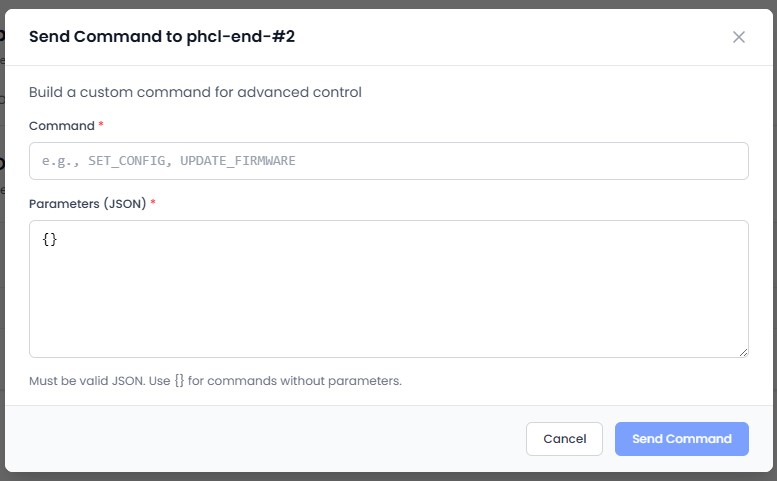
Click Send Command. The Send Command to [device] dialog opens.
Enter the Command name, for example SET_CONFIG or setInterval.
Enter Parameters (JSON), for example {"seconds": 30}. This field is required: use {}
for commands without parameters.
Click Send Command.
The command appears at the top of Command History as PENDING, then SENT, then ACKNOWLEDGED once the device replies.
Sensorclouds doesn't define a list of commands. Each device understands only the commands its firmware implements, so agree on the names and parameters with your firmware developer.
From a dashboard toggle
A Toggle widget sends a preset command when it's switched:
- The command name and the on/off values are set when the widget is configured.
- An optional confirmation step prevents accidental switching.
- The switch moves immediately and rolls back if the command fails or times out.
- Recent toggle commands appear in the dashboard's Command history.
Rules for commands
| Item | Rule |
|---|---|
| Command name | Letters, numbers, and _ - . :. Up to 100 characters |
| Parameters | A JSON object, up to 3 levels deep |
| Reserved names | ota:update, ota:rollback (used by OTA campaigns) |
| Device must be | Connected and subscribed to /cmd to receive it |
Troubleshooting
| Message or symptom | Cause | Fix |
|---|---|---|
| Command name must not exceed 100 characters, or the name is refused | The name is too long or has characters other than letters, numbers, and _ - . : | Shorten or rename the command |
| The parameters are refused | They aren't valid JSON | Check quotes and braces. Use {} for no parameters |
| Stays SENT, then TIMEOUT | The device didn't receive it, or didn't acknowledge it within 5 minutes | Check that the device is online and subscribed to its Commands topic, and that it publishes an ACK with the same commandId |
| FAILED although the device did the work | The ACK didn't say success | Reply with "status": "ok" or "success": true. "status": "success" counts as a failure |
| Commands sent while the device was offline never arrive | The broker doesn't keep them for a clean session | Send again once the device is online, or see MQTT Settings → Clean session |