
User Assignment
Choose which members can see each dashboard
Crew see only the dashboards shared with them, and through those dashboards, only those dashboards' devices. Assignment is how you decide who sees what.
Two ways to share
| Way | Who sees it | Use for |
|---|---|---|
| Assign to members | Only the members you pick | Site- or team-specific dashboards |
| Public | Everyone in the workspace | Workspace-wide overviews |
Assigning members
Open Dashboard in the sidebar.
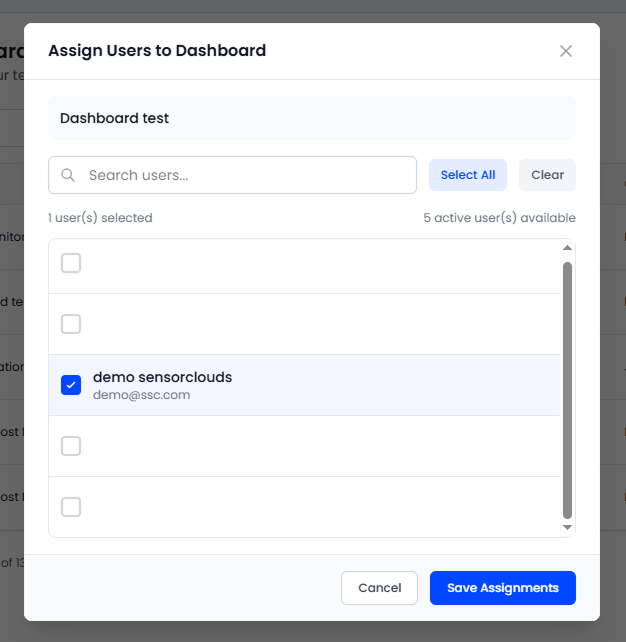
Click the Manage Users icon on the dashboard's row. The Assign Users to Dashboard dialog opens.
Search for members and tick the ones who should see it. Select All and Clear help with long lists. The dialog lists Crew and Engineers, and marks suspended members Inactive.
Click Save Assignments.
Assigned Crew see it under My Dashboards on their home page. If they already have the page open, they may need to reload it.
| You are | You can assign members to |
|---|---|
| Admin | Any dashboard |
| Engineer | Dashboards you created |
Making a dashboard public
To show a dashboard to every member of the workspace without assigning anyone:
Click the Edit icon on the dashboard's row.
Tick Make public (visible to all users).
Save the dashboard.
A public dashboard lets every Crew member see the devices on it. Use assignment for anything site- or customer-specific.
Who sees which dashboards
| Role | Sees |
|---|---|
| Admin | All dashboards |
| Engineer | Dashboards they created, plus dashboards assigned to them |
| Crew | Dashboards assigned to them, plus public dashboards |
What assignment controls
Assigning a dashboard to a Crew member also gives them:
- That dashboard's devices' data
- Notifications for those devices
- The toggles on that dashboard (and only those commands)
Removing the assignment takes all of that away.
Troubleshooting
| Message or symptom | Cause | Fix |
|---|---|---|
| A Crew member can't see the dashboard | It isn't assigned to them and isn't public | Assign them, then ask them to reload the page |
| No users available | The workspace has no Crew or Engineers yet | Invite members first |
| You can only manage user assignments on your own dashboards | Engineers can share only dashboards they created | Ask the creator or a workspace Admin |
| A member is marked Inactive in the dialog | Their access is suspended | An Admin reactivates them on the Users page. See Managing Users |
| The dashboard opens, but widgets are empty | The devices aren't sending, or the range is outside your plan's window | Check the devices' Live Data, then the retention window |