
Managing Members
Change a member's role, suspend or reactivate access, and remove members from your workspace
The Users page lists everyone who belongs to your workspace, plus the invitations still waiting to be accepted. From here you control who can get in and what role they have.
Since 1.5.0, each person owns their own account: their name, email, and password. You manage their membership in your workspace, meaning their role and whether their access is active.
Looking for "Add User"? You no longer create accounts or set passwords for people. Use Invite member instead. People who already have a Sensorclouds account keep it and simply gain access to your workspace. See Inviting Members.
Before you begin
- You need the Admin or Engineer role in this workspace.
- Engineers can manage only the members they invited. See Rules and limits.
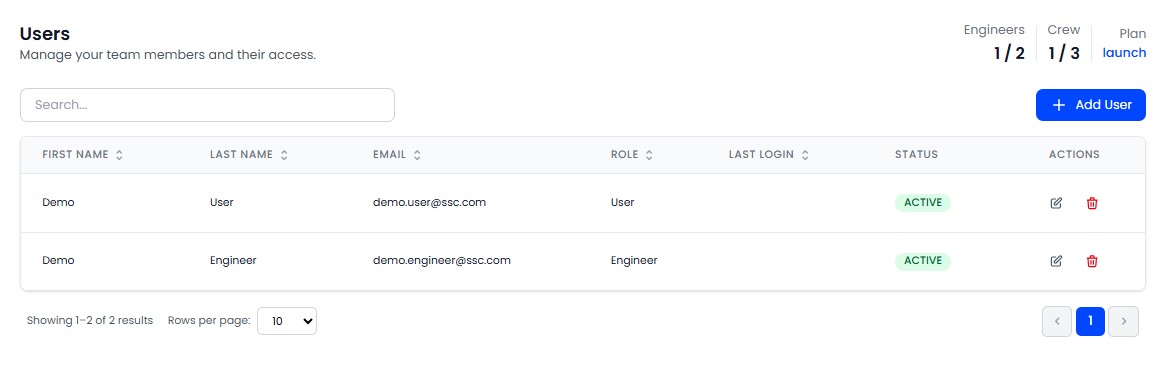
The Users page
| Area | What it shows |
|---|---|
| Seat stats | Engineers and Crew in use against your plan's caps, and your plan name |
| Members table | First name, last name, email, role, status, and last login. Engineers also see a Creator column |
| Pending invitations | Invitations not yet accepted. Each one holds a seat. See Inviting Members |
The table supports sorting by any column, and searching.
Member actions at a glance
| Action | Where | Effect | Reversible? |
|---|---|---|---|
| Change role | Manage member → Role in this workspace | Member becomes Crew or Engineer in this workspace | Yes |
| Suspend | Manage member → Workspace access | Member can't open this workspace. Everything is kept | Yes, with Reactivate |
| Reactivate | Manage member → Workspace access | Restores a suspended member exactly as they were | - |
| Remove | Delete icon on the row | Member loses access to this workspace. Their assignments here are cleared | Re-invite them |
Changing a member's role
Click the member's row (or its edit icon) to open Manage member.
Under Role in this workspace, choose Crew or Engineer.
Click Save role.
The new role applies immediately, including on any page the member already has open. It affects this workspace only, so their role in other workspaces doesn't change.
The Manage member dialog reminds you: "You control this member's role in this workspace. Their name, email, and password stay managed by them in their own account settings."
Suspending and reactivating access
Suspend someone when they should lose access for now, for example during leave, a contract pause, or while you investigate something. Nothing is deleted: their role, dashboard assignments, and history are kept.
To suspend:
Click the member's row to open Manage member.
Under Workspace access, click Suspend.
The dialog then shows: "Suspended — this member cannot enter the workspace until reactivated. Their account and other workspaces are untouched."
To reactivate: open Manage member again and click Reactivate.
Removing a member
Remove someone when they should no longer be part of the workspace.
Click the delete icon on the member's row.
Confirm Remove from workspace.
The confirmation explains: "Their account is not affected — they keep it and any other workspaces they belong to."
What happens:
- The person loses access to your workspace right away, including live updates.
- Their dashboard assignments in this workspace are cleared.
- Their account isn't deleted, and their other workspaces are untouched.
- Their seat is freed.
To give them access again later, send a new invitation.
Suspend or remove? Suspend if they might come back and you want everything preserved. Remove if they've left for good.
Rules and limits
| Rule | Details |
|---|---|
| Admins can't be changed here | Admin members can't have their role changed, be suspended, or be removed from this page. Contact your platform administrator |
| You can't change your own role | Ask another Admin or your platform administrator |
| Engineers manage only their invitees | Engineers can manage only members they invited, and can assign only the Crew role. Other members appear dimmed |
| Only Engineer and Crew can be assigned | The Admin role is assigned by your platform administrator |
| Changes are immediate | Role changes, suspensions, and removals take effect at once, including live dashboard updates |
Account security
Members manage their own password and sign-in, so workspace Admins can't see or set a member's password.
- Passwords must meet the password policy.
- A member who forgets their password uses Forgot password? on the login page. See Resetting Your Password.
Troubleshooting
| Problem | Cause and fix |
|---|---|
| A member is dimmed and I can't edit them | You're an Engineer and didn't invite them. Ask an Admin |
| "You can only manage members you invited" | Same as above |
| "Engineers can only assign the USER role" | Engineers can set only the Crew role |
| I can't edit or remove an Admin | Admins are managed by your platform administrator |
| The member still sees the workspace | They may have a tab open from before. Their next action will be refused, and the tab returns them to their hub |