
Your Profile
Manage your personal details, password, and notification preferences
Your profile belongs to your account, so the same details apply in every workspace you belong to. Open it from Account Settings in the sidebar (Admins and Engineers) or Settings (Crew).
| Role | URL |
|---|---|
| Admin / Engineer | /tenant-admin/profile |
| Crew | /crew/profile |
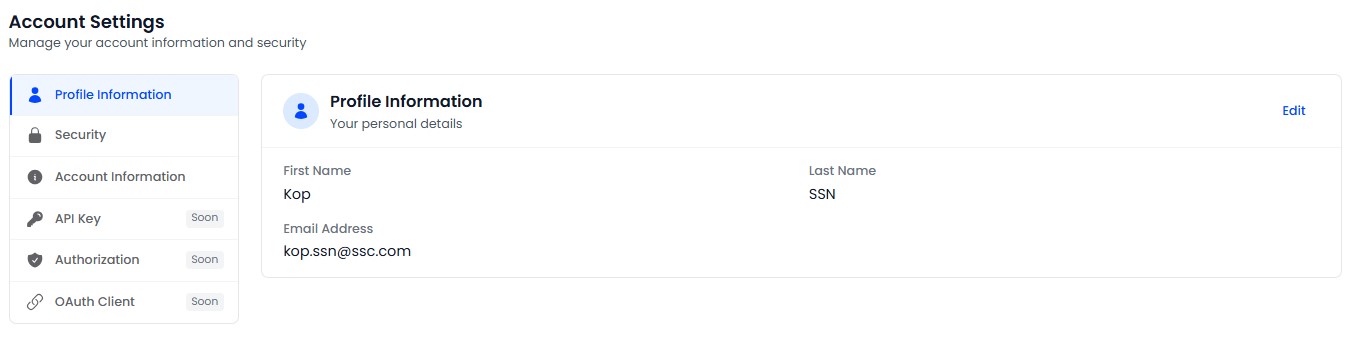
Tabs
| Tab | Who sees it | Use it to |
|---|---|---|
| Profile Information | Everyone | Update your name and email |
| Security | Everyone | Change your password |
| Account Information | Everyone | See your role and workspace details |
| Notifications | Everyone | Choose which notifications you receive |
| Authorization | Admin, Engineer | Coming soon |
| OAuth Client | Admin, Engineer | Coming soon |
Profile Information
Update your First Name, Last Name, and Email Address, then save. These details are part of your account, so they're the same in every workspace.
Security: changing your password
Open the Security tab.
Enter your Current Password.
Enter your New Password, then repeat it in Confirm New Password.
Save.
The new password must meet the password policy, and it can't be your current password or one of your last 5.
Changing your password signs you out on every other device and browser. The session you changed it from stays signed in. If you think someone else knows your password, change it now. That ends their session.
Account Information
Read-only details about your account and the workspace you have open:
| Field | Shows |
|---|---|
| Role | Your role in this workspace |
| Tenant | The workspace name |
| Member Since | When your Sensorclouds account was created |
| Last Login | When you last signed in |
Because roles are per workspace, Role can show something different after you switch workspace.
Notifications
Choose which notification categories you want to receive. See Notifications.
Coming soon
Admins and Engineers also see Authorization and OAuth Client tabs marked Soon. They aren't available yet.
Good to know
- You can't change your own role from your profile. Roles are managed per workspace by its Admins. See Managing Members.
- To leave a workspace, ask one of its Admins to remove you.
Troubleshooting
| Message or symptom | Cause | Fix |
|---|---|---|
| Current password is incorrect | The Current Password doesn't match | Re-enter it. If you've forgotten it, sign out and use password reset |
| Password validation failed: … | The new password breaks a rule, or matches one of your last 5 | Follow the rules listed in the message. See Password Policies |
| Email address is already in use | Another account uses that email | Use a different email, or contact your administrator |
| You were signed out on another computer | You changed your password, which ends your other sessions | Sign in again there with the new password |
| Role looks wrong | Roles are per workspace, and you're viewing another workspace | Switch workspace, or ask that workspace's Admin |