
Monitoring Updates
Track OTA campaign and per-device update progress, and troubleshoot failures
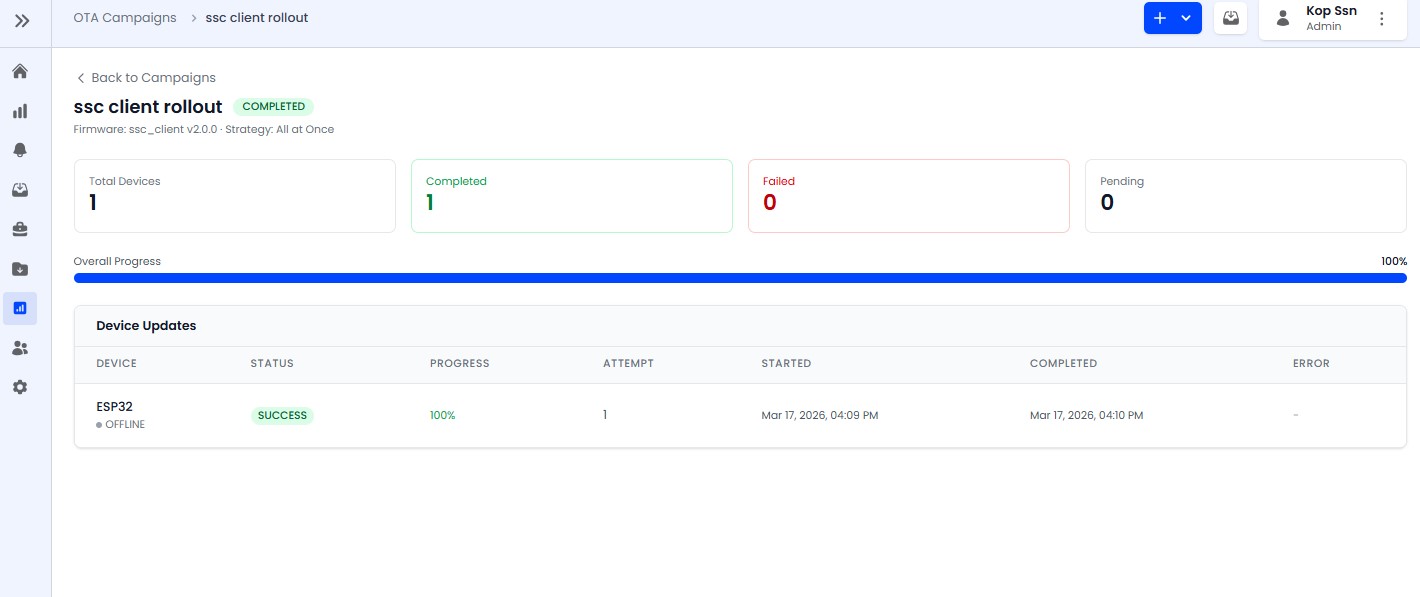
Once a campaign starts, its detail page shows the rollout in real time, both overall and device by device.
Campaign detail page
- A header with the campaign status and firmware information
- Summary cards for Total, Completed, Failed, and Pending
- An Overall Progress bar with a percentage
- A per-device table
Reading the progress bar
The progress bar is segmented, so one glance tells you how the rollout is going:
| Segment | Meaning |
|---|---|
| Completed | Devices that updated successfully |
| Failed | Devices whose update failed |
| Skipped | Devices that were skipped (for example offline or already on that version) |
| In progress | Devices currently notified, downloading, or installing |
| Empty | Devices still waiting |
The percentage counts every device that has finished: completed, failed, or skipped. The legend under the bar shows the count for each segment, and the bar updates live as devices report progress.
The OTA Campaigns list shows a compact version of the same bar on every row, so you can watch several campaigns at once.
Example: 100 devices, with 70 completed, 5 failed, 5 skipped, 10 in progress, and 10 waiting. The bar shows four colored segments and an empty tail, and the percentage reads 80% because 80 devices have finished.
Per-device table
| Column | Description |
|---|---|
| Device name | Device identifier and connection status |
| Update status | Current status badge |
| Progress | Download/install progress for that device |
| Attempt | Current attempt number |
| Timestamps | When the update started and finished |
| Error | The error message, if the update failed |
Device update statuses
Device Update Status
Exit states
FAILED
Error - retryable
SKIPPED
Offline / wrong version
CANCELLED
Stopped before completion
The normal progression runs left to right; any step can branch to one of the exit states below.
| Status | Description |
|---|---|
| PENDING | Waiting to be processed |
| QUEUED | In the queue for the current batch |
| NOTIFIED | The device has been told about the update |
| DOWNLOADING | The device is downloading the firmware |
| INSTALLING | The device is installing the firmware |
| SUCCESS | The update succeeded |
| FAILED | The device reported a failure. See the error message |
| TIMEOUT | The device didn't finish within the campaign's timeout |
| DISCONNECTED | The device went offline during the update |
| ROLLING_BACK / ROLLED_BACK / ROLLBACK_FAILED | The platform asked the device to return to its previous firmware, and whether that worked. See Rollback |
| SKIPPED | The device was skipped (offline, wrong version, and so on) |
| CANCELLED | The update was cancelled before it finished |
Retry Failed sends the update again to devices in FAILED, TIMEOUT, ROLLED_BACK, or ROLLBACK_FAILED.
Firmware download
- Devices download firmware from a secure, time-limited link.
- Each link is single-use and needs no user login.
- Every download includes a SHA-256 checksum for integrity checking.
- Downloads are rate-limited per device.
Troubleshooting failed updates
| Error pattern | Likely cause | What to do |
|---|---|---|
| Many devices SKIPPED | They were offline when their batch started | Bring them online, then retry |
| FAILED during download | Poor connectivity or a timeout | Check the device's network, then Retry |
| FAILED during install | The firmware doesn't suit the device, or the device rejected it | Check the device type and version, then retry |
| Stuck in NOTIFIED | The device didn't act on the update command | Check the device's command handling in Live Data |
Fix the cause before retrying. Retrying a device that keeps failing for the same reason won't help. Use Retry on individual devices once the issue is resolved.