
Firmware Management
Upload, publish, find, and manage firmware files
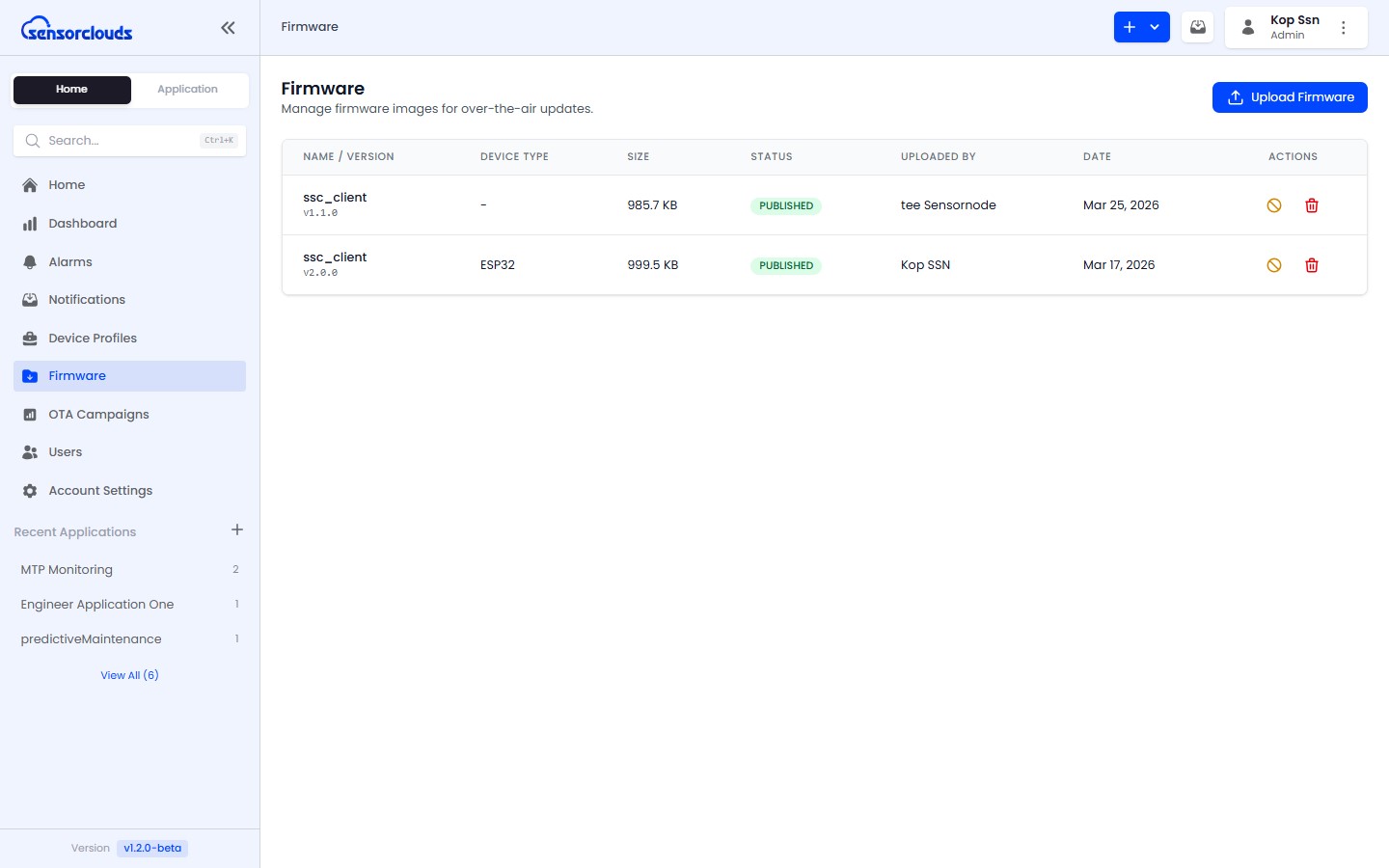
The Firmware page is your library of device firmware. Upload a file once, publish it, and use it in as many OTA campaigns as you need.
Before you begin
- You need the Admin or Engineer role. Only Admins can delete firmware.
- Have the build file ready:
.bin,.elf, or.zip, up to 50 MB.
Uploading firmware
Open Firmware from the sidebar.
Click Upload Firmware.
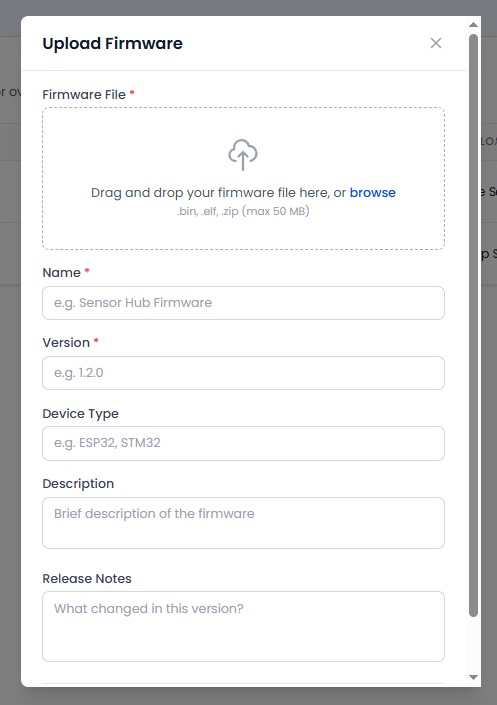
Drag the file onto the drop zone, or click browse.
Fill in the details:
| Field | Required | What to enter |
|---|---|---|
| Firmware File | Yes | A .bin, .elf, or .zip file, up to 50 MB |
| Name | Yes | Up to 100 characters, for example "Sensor Hub Firmware" |
| Version | Yes | Letters, numbers, dots, and dashes, for example 2.1.0 |
| Device Type | No | The hardware it's built for, for example ESP32 or STM32. A label for your team |
| Application | Engineers: yes | The application it belongs to. Admins can choose None (shared firmware) to make it available to every application |
| Description | No | A short summary |
| Release Notes | No | What changed in this version |
Click Upload. The firmware is saved as DRAFT, with a SHA-256 checksum that devices use to verify the download.
When you're ready to use it, click Publish on its row.
The version is filled in from the file name when it contains one. For example,
sensor-firmware-v2.1.0.bin fills in 2.1.0.
Sensorclouds doesn't check that a file matches your hardware. The Device Type is only a label, so name files clearly and test each build on one device first.
Finding firmware
The Firmware table has a Search firmware… box and is paginated, so large libraries stay quick to browse. The OTA Campaigns page works the same way, with a Search campaigns… box.
Firmware lifecycle
DRAFT ──Publish──▶ PUBLISHED ──Deprecate──▶ DEPRECATED| Status | Meaning | Can be used in campaigns? |
|---|---|---|
| DRAFT | Uploaded but not yet released | No |
| PUBLISHED | Released | Yes |
| DEPRECATED | No longer recommended. This is final: deprecated firmware can't be published again | No |
Actions
| Action | What it does |
|---|---|
| Publish | DRAFT → PUBLISHED. Makes the firmware available for campaigns |
| Deprecate | PUBLISHED → DEPRECATED. Removes it from campaign selection |
| Delete | Removes the file and its record (Admins only). Not possible while a campaign uses it |
Automatic maintenance
Firmware left in DRAFT for more than 30 days is cleaned up automatically. Publish firmware you want to keep.
Storage limits
Total firmware storage is capped by your plan, and each file is limited to 50 MB. See Tenant Profiles.
Troubleshooting
| Message | Cause | Fix |
|---|---|---|
| Invalid file type. Allowed: … | The file isn't .bin, .elf, or .zip | Export the build in a supported format, or zip it |
| File exceeds maximum size of 50 MB. | The file is too large | Reduce the build size, for example by removing debug symbols |
| Storage quota exceeded. Used: N MB / M MB | Your plan's firmware storage is full | Delete old or deprecated firmware, or ask about a larger plan |
| Version is required (alphanumeric, dots, dashes). | The version has spaces or other characters | Use a form such as 2.1.0 or 2.1.0-rc1 |
| Engineers must select an application. | Engineers can't upload shared firmware | Choose one of your applications |
| Engineers cannot modify shared firmware | The firmware was shared by an Admin | Ask an Admin to publish or deprecate it |
| Cannot delete firmware with active campaigns | A campaign still uses it | Wait for the campaign to finish, or cancel it first |
| The firmware disappeared | DRAFT firmware is removed after 30 days | Upload it again and publish it |